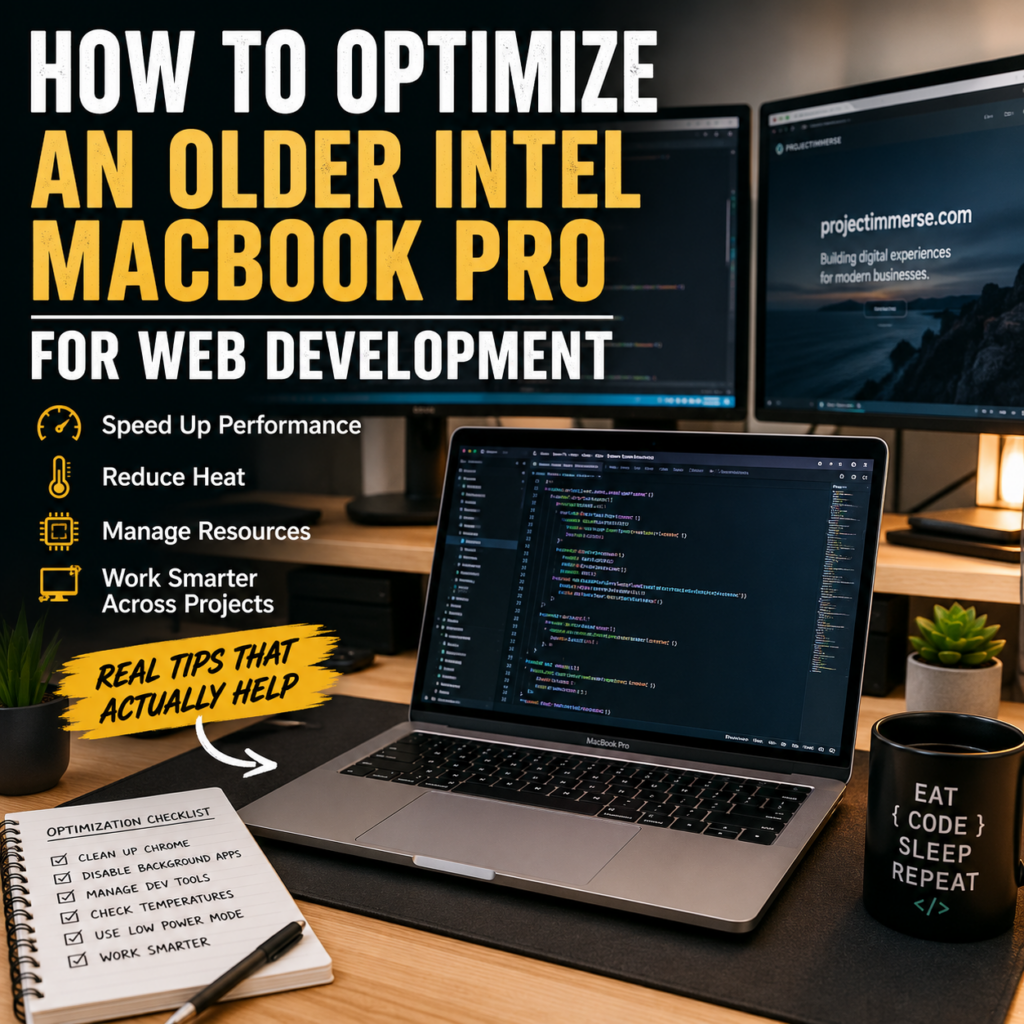
If your Intel MacBook Pro gets hot while you’re coding, running Chrome, using external monitors, and juggling client work, the first instinct might be to replace it.
That was my thought too.
Instead, I spent some time figuring out what was actually causing the heat. The good news: my 2019 MacBook Pro was in much better shape than I expected.
The real problem was mostly unnecessary background activity.
Start With Activity Monitor
Before resetting your Mac, open:
Applications → Utilities → Activity Monitor
Sort the CPU tab by % CPU.
In my case, Chrome was using a ridiculous amount of processing power. Multiple Chrome processes were active, and one browser extension was using around 65% CPU by itself.
That was enough to make the Mac run noticeably hotter.
Clean Up Chrome
Chrome can become surprisingly heavy over time, especially if you’ve accumulated developer extensions.
I removed extensions I wasn’t actively using and immediately saw a big drop in CPU usage.
I also changed a few Chrome settings:
- Turned Memory Saver on
- Turned Preload pages off
- Enabled Energy Saver
The preload setting was especially useful. Chrome had been loading pages in the background that I hadn’t even opened yet.
Helpful? Sure.
Necessary? Not really.
Disable Unnecessary Background Apps
Next, I went to:
System Settings → General → Login Items & Extensions
I found background services for tools like Adobe Creative Cloud, Docker, MAMP, Zoom, Microsoft apps, Google updaters, and other utilities.
I turned most of them off.
This doesn’t uninstall anything. It just means those applications aren’t constantly hanging around when I’m not using them.
My new rule is simple:
If I’m not using it, it doesn’t need to be running.
That’s especially important with Docker and local development environments.
Check Your Memory Before Blaming RAM
My Mac has 16 GB of RAM, which sounds limited compared with newer machines.
But after cleaning things up and rebooting, Activity Monitor showed roughly 6 GB of memory in use with:
0 bytes of swap
That told me something important.
The Mac wasn’t actually struggling with memory.
So buying a new machine just to get more RAM wouldn’t have addressed the main issue.
Storage Matters Too
I also checked my SSD.
I had more than 300 GB free, so storage wasn’t a bottleneck either.
If your drive is nearly full, that can hurt overall system performance. macOS needs breathing room for caching, temporary files, and swap.
Keeping a healthy amount of free space is an easy win.
Don’t Leave Development Tools Running
For web development, this is one of the biggest habits to change.
If I start a Next.js project with:
npm run dev
I stop it when I’m done.
If I need Docker, I open Docker.
When I’m finished, I quit it.
Same with MAMP, local PHP servers, database services, and anything else running in the background.
Three client projects do not need three development environments running all day.
External Monitors Can Add Heat
This was the biggest hardware-related discovery.
My setup uses three external monitors plus the MacBook display.
That means the Mac is driving four displays.
On my 2019 MacBook Pro, that keeps the dedicated AMD Radeon GPU active. Even if the CPU isn’t doing much, the GPU is still working constantly.
So if you use multiple external monitors and your Intel Mac runs warm, the monitors may be contributing more than you think.
Dropping from three external displays to two could be a reasonable compromise.
Warm Does Not Mean Overheating
I checked my actual temperatures using Terminal:
sudo powermetrics --samplers smc -n 1
My readings were around:
- CPU: 69°C
- GPU: 73°C
- Fans: about 2,883 RPM
- No thermal throttling detected
That was reassuring.
The Mac was warm, but it wasn’t overheating.
Intel MacBooks simply run hotter than Apple Silicon machines, especially when using dedicated graphics and multiple monitors.
Use Low Power Mode
I also keep:
System Settings → Battery → Low Power Mode → Always
enabled.
For normal WordPress, PHP, JavaScript, Git, and front-end development, I don’t need maximum CPU performance every second.
If I need extra power for a heavy build, I can always turn it off temporarily.
The Biggest Lesson
I originally thought I might need to factory-reset my Mac or replace it entirely.
I ended up doing neither.
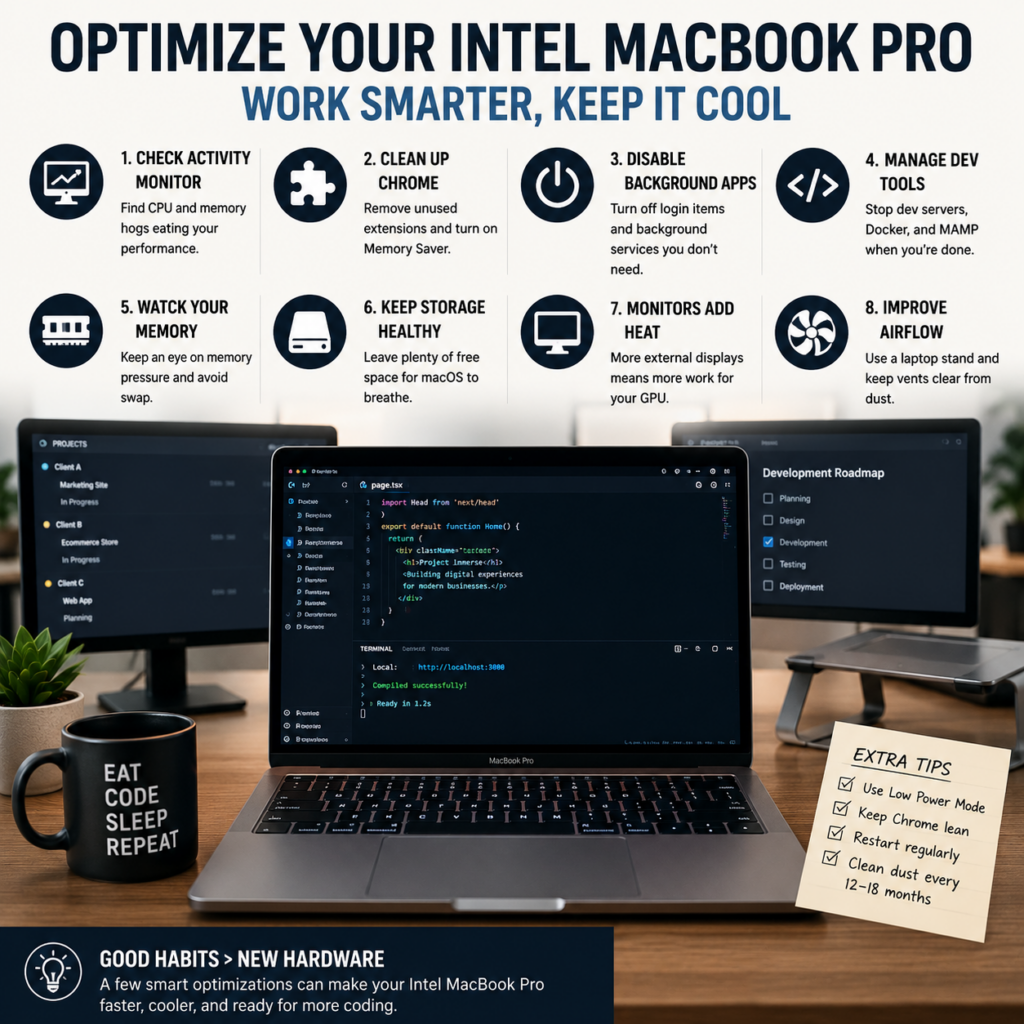
The biggest improvements came from:
- Cleaning up Chrome extensions
- Disabling unnecessary background apps
- Managing Docker and development servers more carefully
- Reducing unnecessary browser activity
- Understanding the impact of multiple monitors
The machine itself was still perfectly capable.
Sometimes an older computer doesn’t need replacing.
It just needs fewer things trying to be important at the same time.
And if your Mac sounds like it’s preparing to enter low Earth orbit every time you open VS Code, Activity Monitor is probably a better place to start than the Apple Store.